

90-Second Video Walkthrough
Schedule a Message
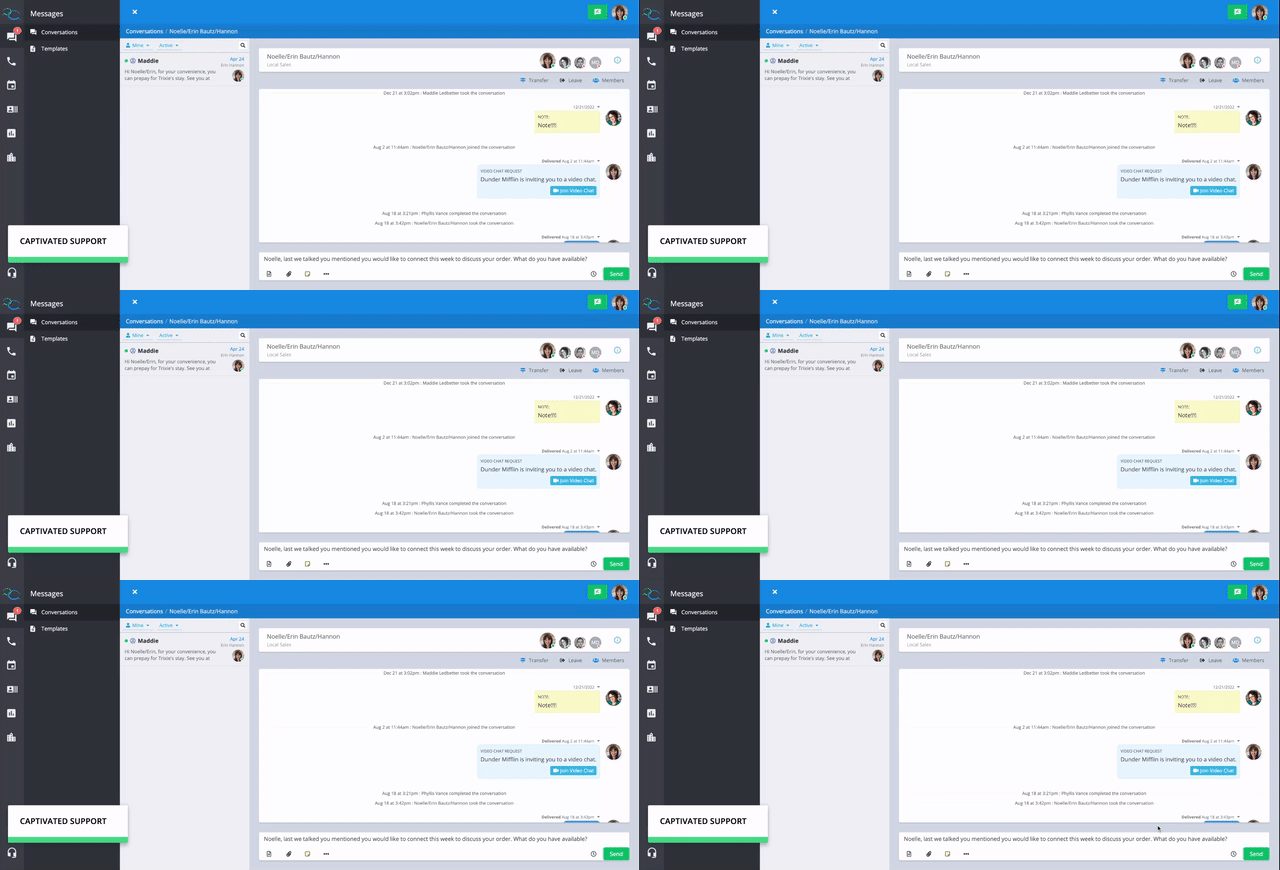
Scheduled messages are helpful when you want to follow up with a contact later, send an appointment reminder, or prepare a message ahead of time. To schedule a message:- Compose your message in the message field.
- Select the clock icon next to the Send button.
- Choose the date and time you’d like the message to send.
- Review your message and scheduled send time.
- Select Schedule.
View a Scheduled Message
Within the conversation, select the scheduled message indicator to view messages that are waiting to be sent. You’ll see the message content along with the date and time it is scheduled to send. From here, you can edit or cancel the scheduled message before it sends.Edit a Scheduled Message
Need to fix a typo or make a change? You can edit a scheduled message anytime before it is sent. Select the pencil/edit icon on the scheduled message to open it in the message composer. While editing, you can:- Change the message text
- Add or remove attachments
- Add a contact card
- Change the scheduled send date or time
Make sure you select Schedule after editing to save your changes. Editing a scheduled message does not cause it to send immediately.
Cancel a Scheduled Message
If you no longer want a scheduled message to be sent, open the scheduled message and select the red trash icon to cancel it. Once canceled, the message will no longer be sent at its previously scheduled time.Find Your Scheduled Messages
You can use your Conversation Filters to quickly find conversations containing scheduled messages. Select Scheduled from the conversation filter. Your conversation list will update to show conversations with messages currently scheduled to send. When you’re finished reviewing your scheduled messages, change your filter back to Active to return to your normal conversation view.Before You Schedule
Before scheduling a message, take a moment to confirm:- The message is being sent to the correct contact.
- The message content, links, and attachments are correct.
- The scheduled date and time are correct.
- Any Merge Fields or personalized information are accurate.