

If you don’t see Contact Ownership options in your account, this feature may not be enabled for your organization. Contact Captivated Support to request access.
Viewing Your Contacts
From Contacts, use the available filters to control which contacts are displayed.My Contacts
Select My to view contacts assigned to you as the Contact Owner.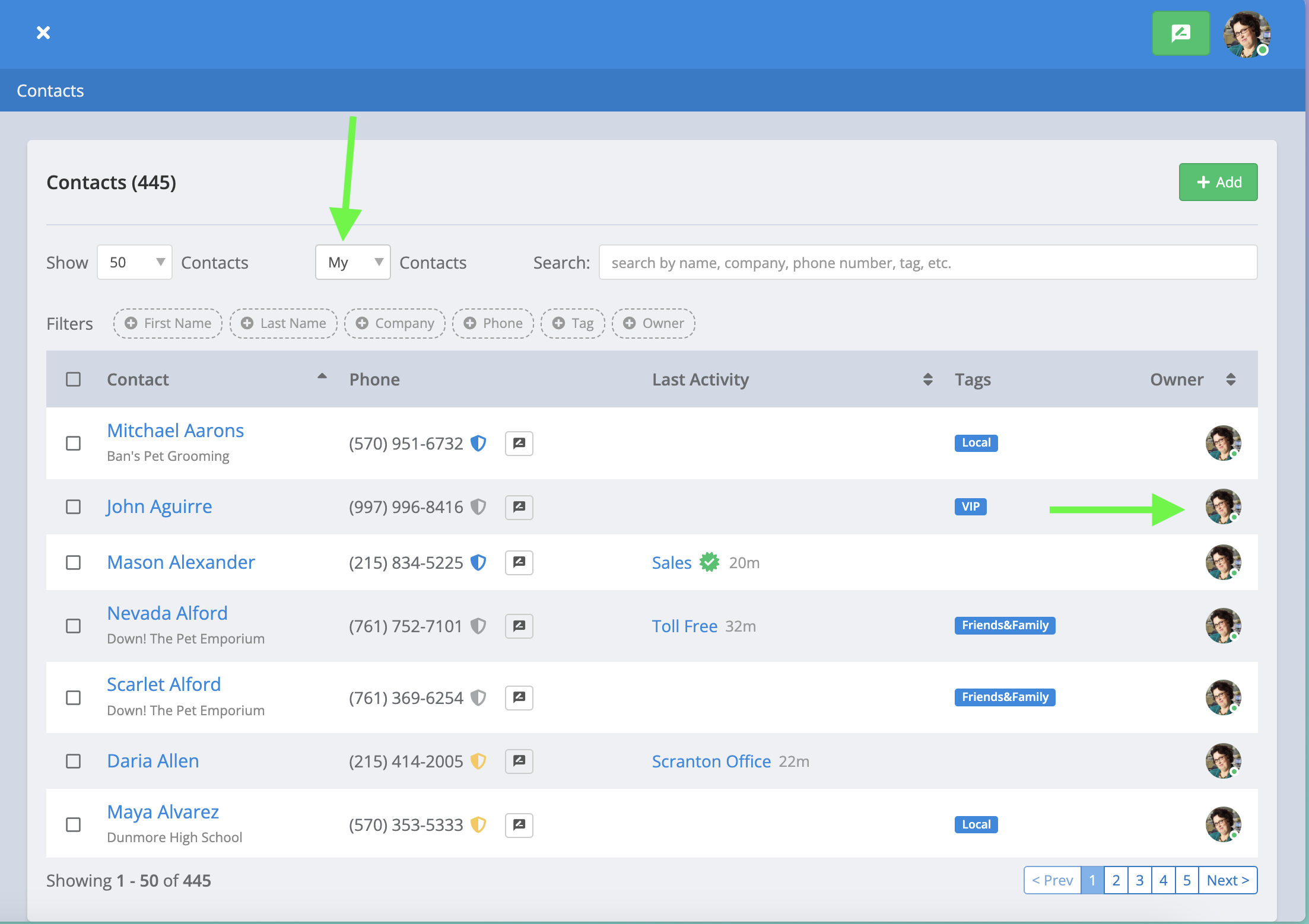
All Contacts
Select All to view all contacts within the account, regardless of Contact Owner. The Contact Owner assigned to each contact will also be displayed in the contact list.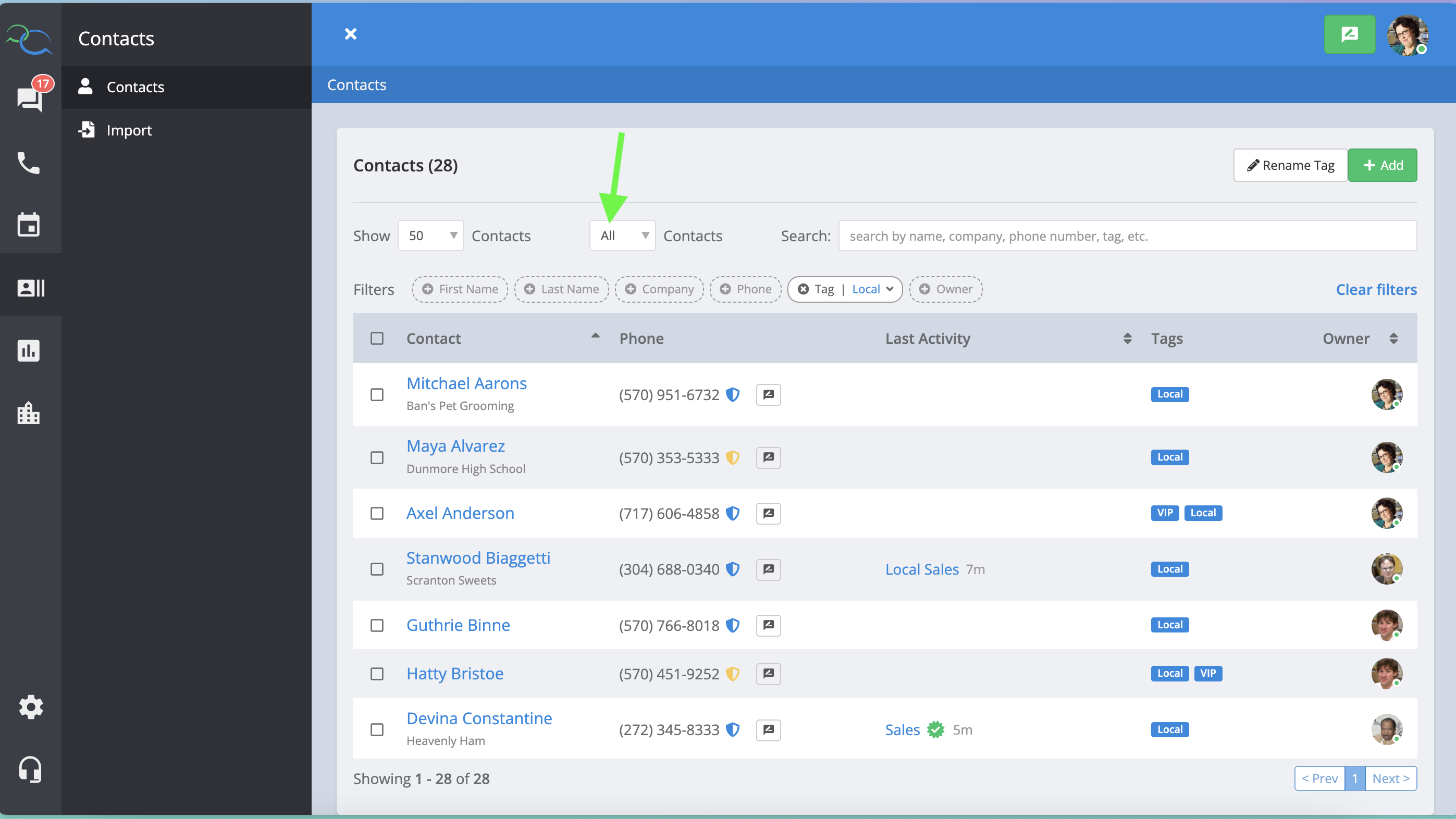
Unassigned Contacts
If a contact does not currently have a Contact Owner, the Contact Owner icon will display as Unassigned with no User avatar.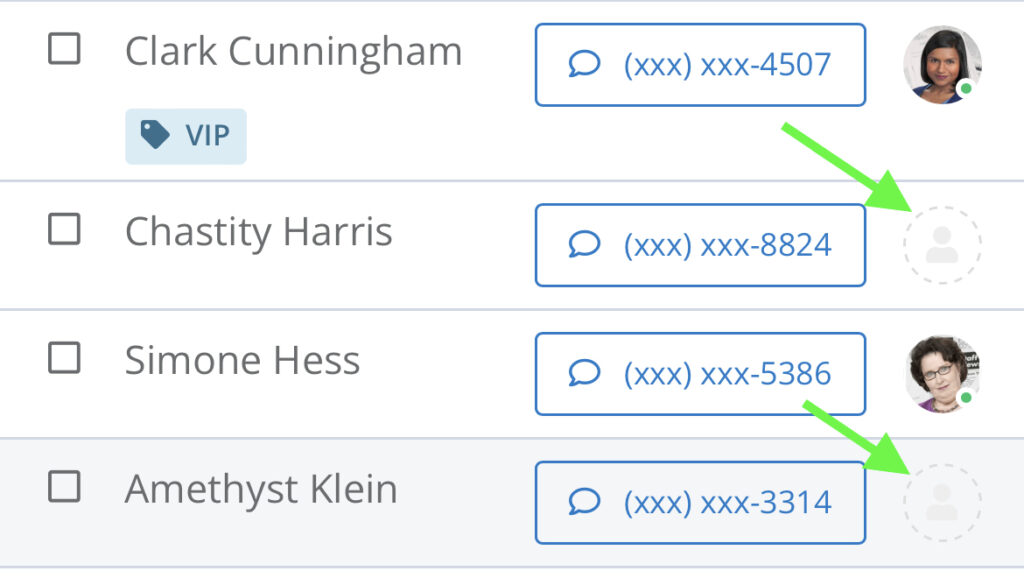
Manually Assign a Contact Owner
You can assign or change Contact Ownership directly from the Contacts list or an individual contact.- Go to Contacts.
- Locate the contact you want to assign.
- Select the Contact Owner icon on the right side of the contact.
- Choose the User who should own the contact.
 You can also assign ownership from an individual contact’s page by selecting the Contact Owner icon and choosing a User.
 Once assigned, the contact will appear under the My Contacts filter for that User.
Assign Contact Ownership During an Import
Contact Owners can also be assigned when importing contacts. During the import process, use the Contact Owner dropdown to select the User who should own the imported contacts.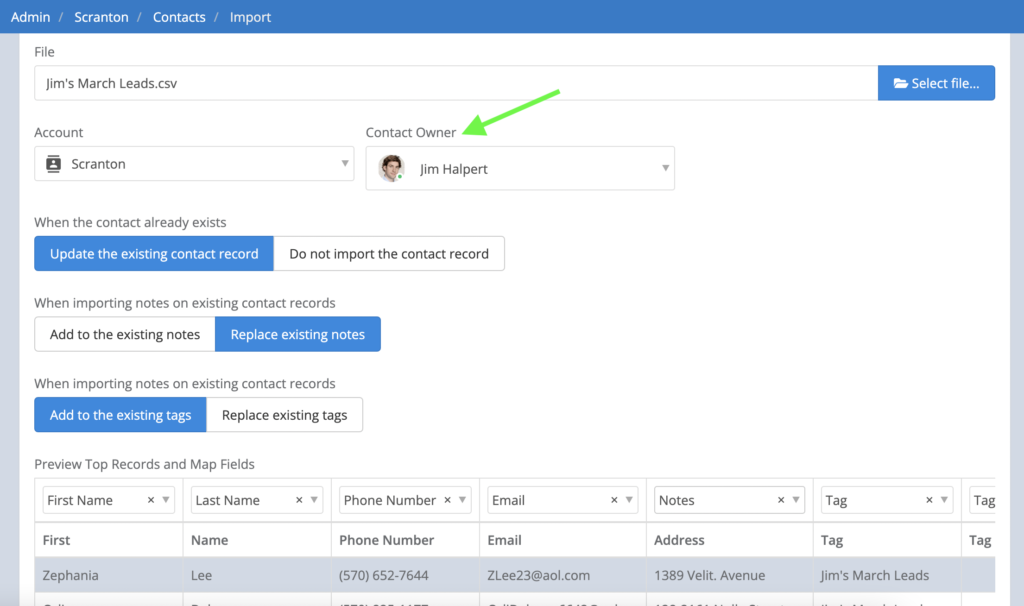 The selected User will be assigned as the Contact Owner when the import is completed.
Contact Owner Import Options
The Contact Owner dropdown also includes:- Unassigned — Imports the contacts without assigning a Contact Owner.
- Do Not Change — Leaves existing Contact Ownership unchanged. If an imported contact already has an owner, that User will remain the Contact Owner.
Use Do Not Change when updating existing contacts through an import if you want to preserve their current Contact Owners.
 For complete instructions on preparing and uploading a contact list, see the Importing Contacts guide.