

Send a Form
To send a form during a Captivated conversation:- Open the three-dot More menu below the message field.
- Select Attach Form.
- Choose the form you want to send.
- Adjust the accompanying message if needed.
- Select Send.
 The contact will receive a text message containing a link to complete the form directly from their phone.
Add a Form to a Template
If your team frequently sends the same form, you can attach it to a Template. This allows Users to quickly send the form along with your organization’s predefined messaging.

Pre-Fill a Form
For supported forms, you can pre-fill information before sending it to a customer. This is useful when you already have some of the information and don’t want the customer to enter it again.- Attach the form to your message.
- Select Pre-Fill.
- Review or enter the available information.
- Editable by either the sender or recipient
- Completed by the sender only
- Completed by the recipient only
Send Forms Automatically
Forms can also be sent automatically using Automation Events & Workflows. For example, you could configure an Automation Event so that when a customer texts Register, Captivated automatically responds with the appropriate registration form. This can be useful for registration, intake, service requests, lead capture, and other repeatable processes.
What the Customer Sees
When a form is sent, the customer receives a text containing a link to the form. They can open the link and complete the form directly from their phone.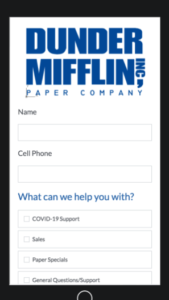
 Once submitted, the completed form appears within the Captivated conversation.
Select View PDF to view the completed form when PDF output is configured.
Once submitted, the completed form appears within the Captivated conversation.
Select View PDF to view the completed form when PDF output is configured.
 Forms can also be configured to email a PDF copy of the completed submission to designated email addresses.
View Form Submissions
You can review form activity across your organization from the Form Submissions dashboard. Go to Dashboards → Form Submissions. From here, you can:- Filter submissions by date
- Filter by account
- Filter by a specific form
- See which contact received the form
- See when the form was sent
- See when it was submitted
- See which Captivated User sent it
- Preview completed submissions
- Open the associated Captivated conversation
- Export submission information to CSV
Request a New Form
Captivated’s Professional Services team can build and configure Live Forms based on your organization’s needs. If you’re recreating an existing form or document, provide a copy when making your request. If you’re starting from scratch, describe the information you need to collect and what you’d like to happen after the customer submits it. Live Forms can support more than simply converting an existing document to a digital format. Depending on your requirements, they can include conditional logic, pre-filled information, PDF generation, keyword delivery, website delivery, confirmation messages, and supporting Captivated automation. The underlying Professional Services documentation specifically treats the form as part of the overall customer workflow rather than just a digital copy of a paper form.Form setup and customization are Professional Services offerings. The cost of building or modifying a form varies based on its requirements and complexity.