Love-Encore booking is configured around the customer’s Date of Delivery to ensure appointments are offered within the appropriate eligibility window.
Reschedule an Appointment
There are two ways to reschedule an appointment:- Choose the new appointment time for the customer if you already know when they’d like to come in.
- Send the customer a reschedule link so they can choose another available time themselves.
Choose a New Time for the Customer
If the customer has already told you when they’d like to reschedule:- Find the blue Appointment Booked box within the conversation.
- Select Reschedule.
- Select Select a new appointment time.
- Captivated will open your booking site in a new tab.
- Select the customer’s new date and time and complete the booking.
- The Captivated Workflow moves to Rescheduled.
- The customer receives a text confirming their new appointment.
- The appointment on your connected Google or Outlook calendar automatically moves to the new date and time.

Let the Customer Choose a New Time
If the customer doesn’t know when they’d like to reschedule:- Find the blue Appointment Booked box.
- Select Reschedule.
- Choose Send a reschedule link.
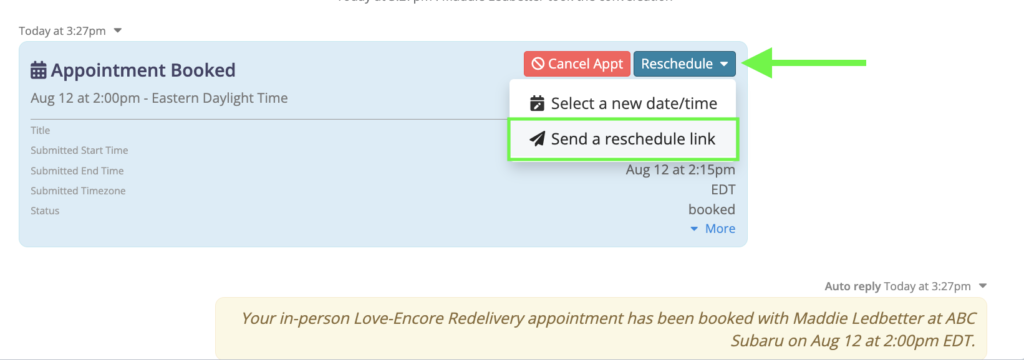 Captivated will populate the reschedule message in the Write a Message field. Review the message and select Send.
The customer will receive a link allowing them to choose another eligible appointment time.
Captivated will populate the reschedule message in the Write a Message field. Review the message and select Send.
The customer will receive a link allowing them to choose another eligible appointment time.
Sending a reschedule request automatically cancels the customer’s original appointment.
 The Workflow will move to Reschedule Requested while you wait for the customer to select a new appointment.
What Happens If They Don’t Rebook?
Captivated will automatically follow up after the reschedule request:- If the customer hasn’t booked within 2 days, Captivated sends a reminder.
- If the customer hasn’t booked within 7 days, the Workflow moves to Final Reach Out.
- Once in Final Reach Out, no additional automated messages are sent.
Cancel an Appointment
When a customer asks to cancel, make sure you cancel the appointment through Captivated rather than simply leaving the appointment on the calendar. Canceling through Captivated will:- Remove the appointment from your connected Google or Outlook calendar
- Stop future automated appointment reminders
- Update the customer’s Workflow status
- Send the customer a cancellation confirmation
- Find the blue Appointment Booked box.
- Select the red Cancel button.
- Select Cancel this appointment.
 The Workflow will move to Canceled, and the customer will receive a confirmation text.
No additional automated appointment reminders are sent while the conversation is in the Canceled state.
If the customer later wants to schedule again, use the three-dot More menu → Request Appointment.
The Workflow will move to Canceled, and the customer will receive a confirmation text.
No additional automated appointment reminders are sent while the conversation is in the Canceled state.
If the customer later wants to schedule again, use the three-dot More menu → Request Appointment.
Book an Appointment for a Customer Who Can’t Use the Link
If a customer doesn’t have a smartphone or would prefer that you complete the booking process for them, you can assist them. Scan your dealership’s Love-Encore QR code and complete the booking form on behalf of the customer. Once the form is submitted, continue through the normal booking process and select an available appointment for the customer.Block Time Off on Your Calendar
Your Captivated booking site uses your connected Google or Outlook calendar to determine when you’re available. If you’re unavailable during hours when you would normally accept Love-Encore appointments, block that time on your connected calendar. This includes:- Vacation
- Meetings
- Personal appointments
- Training
- Other times you cannot accept a Love-Encore appointment

Google Calendar
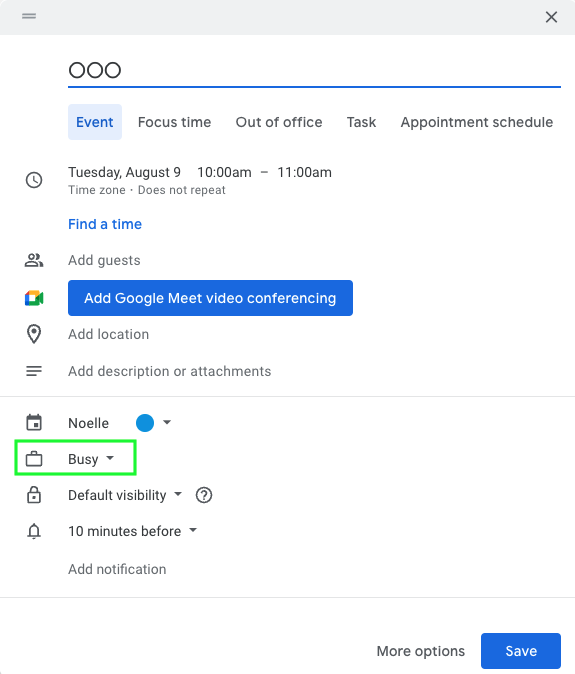
If your organization uses a Google business account, choose Out of Office when available. If Out of Office isn’t available, create a regular calendar event and make sure it is marked Busy.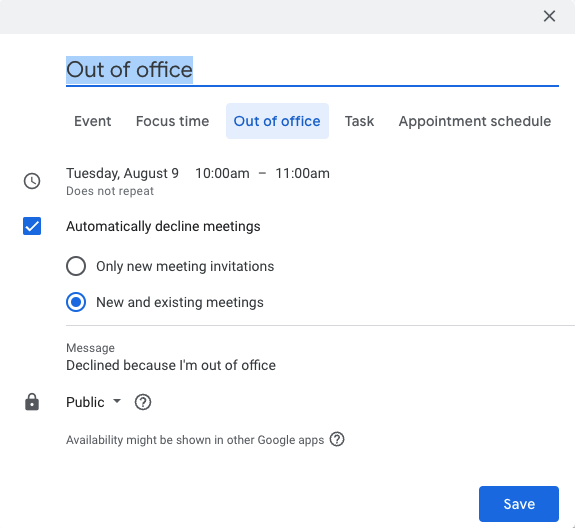
Outlook
Create an event for the unavailable time and make sure Show As is set to Busy. If you edit an Outlook event, double-check its availability status before saving, as the setting can sometimes change. After blocking your time, go to Appointments → Add Event in Captivated and verify that those dates and times are no longer available on your booking site.Adjust Your Booking Site Settings
You can manage when and how customers are allowed to schedule Love-Encore appointments. In Captivated:- Go to Appointments.
- Select your calendar from the dropdown.
- Select Settings.

Appointment Details
Under Appointment Details, you can adjust the duration of your Love-Encore appointments.Availability
Under Availability, set the days and hours when you’d like to accept Love-Encore appointments. Additional scheduling options include:- Buffer before appointments
- Buffer after appointments
- Minimum booking notice
- Limit future bookings
- Minimum cancellation notice
Advanced Settings
Under Advanced, you can adjust your available time slot intervals.
Before making significant changes to your Love-Encore booking configuration or eligibility settings, contact Captivated Support if you’re unsure how the change will affect customer scheduling.

Find Your Upcoming Appointments
Captivated’s conversation filters make it easy to find customers based on where they are in the Love-Encore process.- Select the Search icon above your conversation list.
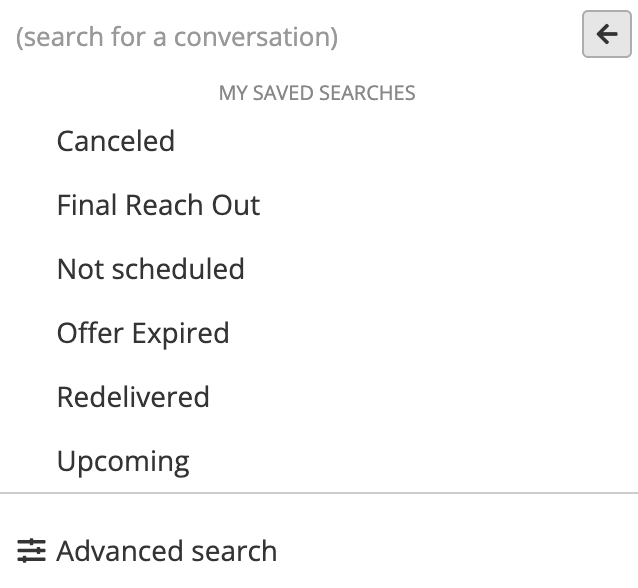
- Choose the status you’d like to view.
- Have not yet booked
- Have canceled
- Have completed their Redelivery
- Are in other stages of the appointment process

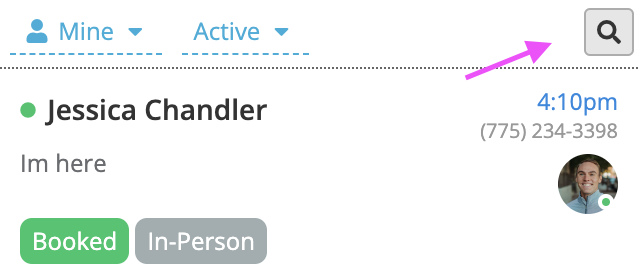 Choose “Upcoming” to filter and see all of your scheduled appointments within your conversation list. You can also filter to see all canceled appointments, Redelivered appointments, or conversations where the customer has not yet booked an appointment and more!
Why Doesn’t a Conversation Have an Appointment Status?
Your Love-Encore conversations should typically move through statuses such as Appointment Requested, Booked, Reschedule Requested, Rescheduled, or Canceled as customers move through the process. If a conversation doesn’t have the expected status, you may be using a custom Template or message that isn’t connected to the appropriate Love-Encore automation. Contact Captivated Support so we can review the Template and automation associated with your account.