- Using the green New Message button
- From the Contacts section
Group messages are different from Announcements. Group message participants can see and respond to messages from everyone in the group, while Announcements are sent BCC and each recipient receives the message individually.
Start a Group Message Using the New Message Button
Select the green New Message button in the top right-hand corner of Captivated. Make sure you are on the SMS option and begin selecting your contacts. Once you select more than one contact, the option to send a group message will appear. Continue selecting the contacts you’d like to include. Remember, a group message can include no more than 10 people.Start a Group Message from Contacts
You can also create a group message from the Contacts section in the left-hand menu. Select the checkbox next to each contact you’d like to include. Once more than one contact is selected, choose Send a Group Message.Select Your Sending Channel
After choosing your contacts, a new screen will appear where you can:- Review the contacts and phone numbers included in the group
- Choose the Captivated channel/phone number you’d like to send the message from
- Select the red remove icon to remove that contact from the group, or
- Choose a different channel that the contact is eligible to receive messages from
Send Your Group Message
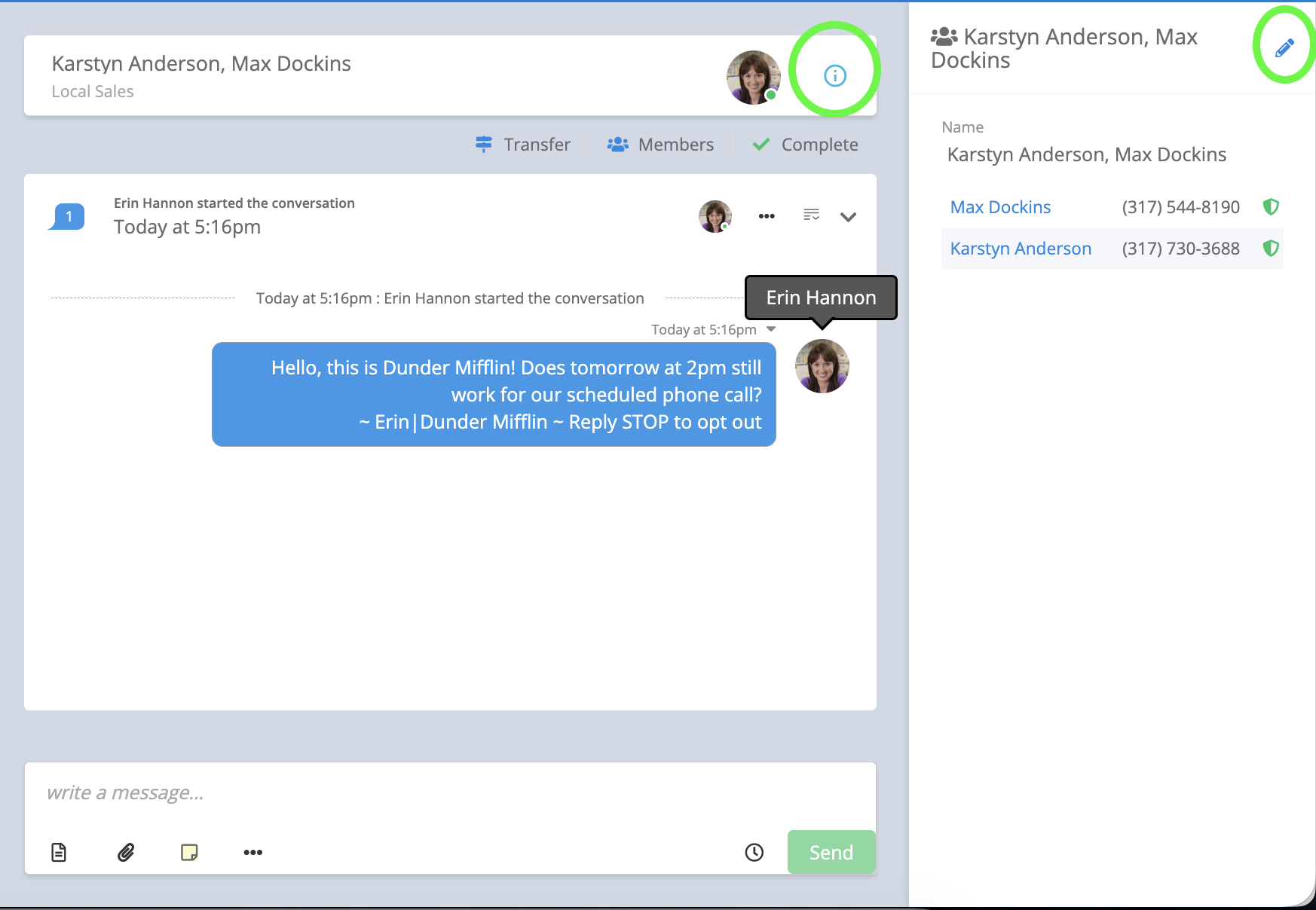
Type your message in the Write a Message field or select an existing template. You can also select the info icon in the upper right-hand corner to:- View the phone numbers included in the group
- Give your group conversation a name (optional)
If Someone Opts Out
If one of the contacts in an existing group message opts out, you will no longer be able to continue messaging within that group thread.
Group Message Limit
Group messages are limited to 10 people. If you need to send the same message to a larger group, consider using Announcements, if that feature is enabled for your account and your recipients meet the applicable opt-in requirements. Questions? You can chat with Captivated Support using the Support option in the left-hand menu or text Captivated Support at 317.316.3600.