

What Is a Contact Exchange?
Contact Exchange makes it easy for you and your customer to share contact information directly through text. When you send a Contact Exchange request, the customer receives a link where they can provide their information, agree to the displayed texting consent language, and save your business’s contact card to their phone. Once submitted, their information is automatically updated in Captivated.Benefits of Contact Exchange
Contact Exchange can help you:- Start conversations faster — Send an initial message without needing to know or manually enter the contact’s first and last name.
- Collect contact information — The customer’s first and last name are automatically added to their Captivated contact record after submission.
- Share your business contact card — Customers can download and save your contact information to their phone for future calls and texts.
- Collect and document opt-in — Customers can agree to the consent language displayed during the Contact Exchange process, and their submission is stored in Captivated.
Send a Contact Exchange Request
To send a Contact Exchange:- Open the conversation with the contact.
- Select the three-dot menu below the message field.
- Choose Request Contact Exchange.
- Add or review the message you’d like to send with the request.
- Select Send.

Use a Template
If your team frequently sends Contact Exchange requests, consider adding the request to a Template. For example:
{{salutation}}, as requested, here's the link to exchange contact information with me.
This allows your team to quickly send a consistent message without rebuilding the request each time.
What the Customer Sees
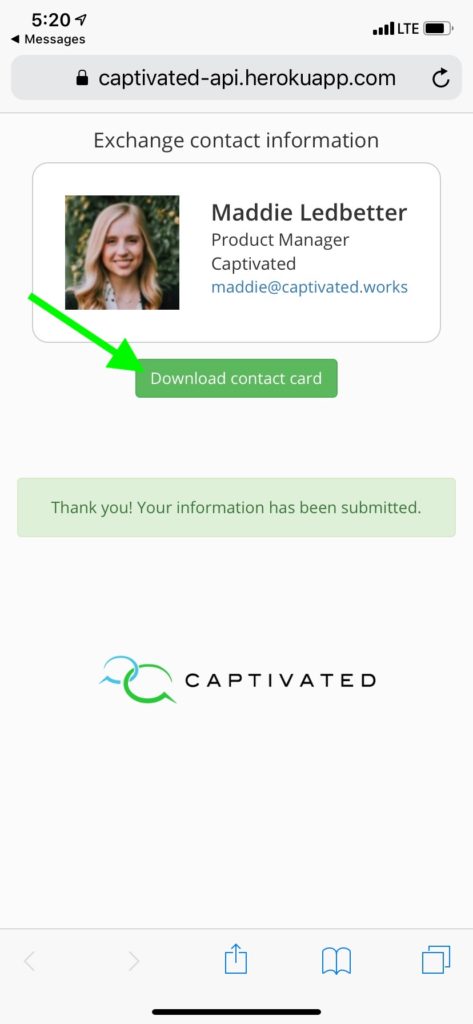
When the customer opens the Contact Exchange link, they’ll be prompted to provide their contact information and review the displayed texting consent language. After submitting the form, they can also download and save your business contact card to their phone. Saving your contact card makes it easier for the customer to recognize your business when you call or text them in the future.
What Happens After Submission
Once the customer submits the Contact Exchange:- Their submitted contact information is added to their Captivated contact record.
- A Contact Exchange Submitted entry appears directly in the conversation.
- Their submitted opt-in information is recorded.
- The customer has the option to save your business contact card.
View a Contact Exchange Submission
To review the information submitted by the customer, locate Contact Exchange Submitted within the conversation and select Tap to View. This allows you to review the information associated with that Contact Exchange submission.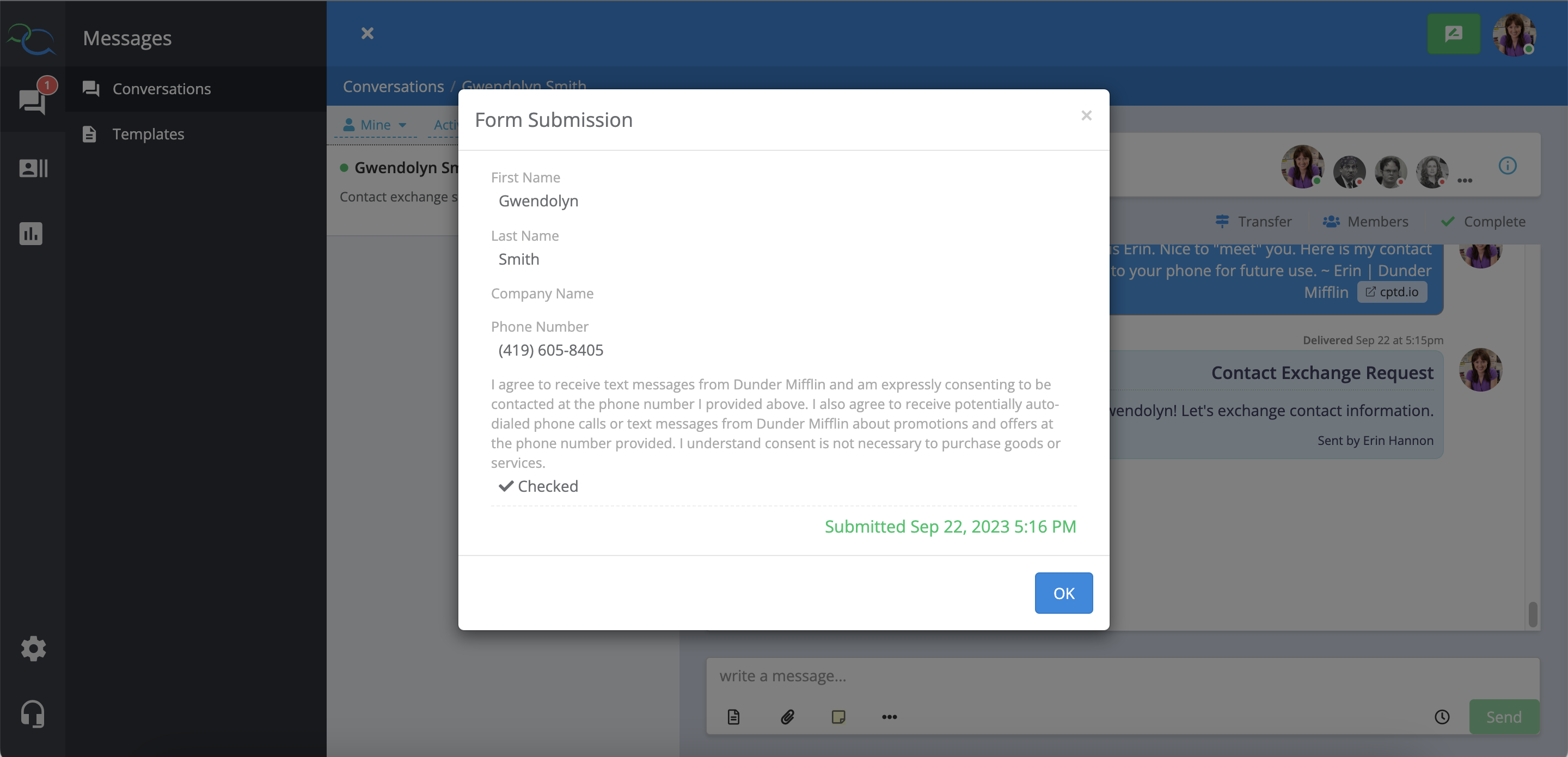
Contact Exchange vs. Sending a Contact Card
These features are related, but they serve different purposes:
Learn more about Sending Your Contact Card.