

Send a Payment Request
To manually send a payment request:- Open the conversation with the contact.
- Select the three-dot menu below the message field.
- Choose Request Payment.
- Enter the payment details and include a message for the customer.
- Review the information carefully and select Send.

Add a Payment Request to a Template
If you frequently send the same type of payment request, you can also add one to a template. When creating or editing your template, select Attach a Payment Request. This allows you to quickly send the payment request along with your templated message.What the Customer Sees
The customer will receive a text message containing a secure link to complete their payment. After opening the link, the customer can choose from the available payment methods, including:- Bank account (ACH)
- Credit or debit card
- Apple Pay
- Google Pay
Paying by Bank Account
If the customer chooses to pay using their bank account, Plaid will guide them through securely connecting their financial institution and selecting the appropriate bank account.Paying by Card
If the customer chooses to pay by card, they can enter their card information and complete the payment from their device. Depending on the device and available payment methods, they may also have the option to use Apple Pay or Google Pay.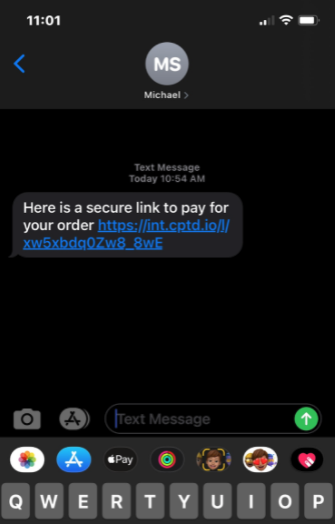
View Payment Status
Payment activity is displayed directly within the Captivated conversation. Once the customer completes their payment, the payment request will update to show Paid.
Cancel a Payment Request
If a payment request has not yet been paid and is no longer needed, select Cancel Payment Request within the conversation. Once a payment is made, the status will change to “Paid.” If a refund needs to be sent to the contact, hit “refund.”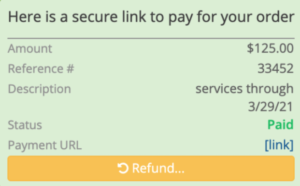
Refund a Payment
Once a payment has been completed, the payment request will display a Refund option. Select Refund from the paid payment request to initiate a refund when necessary.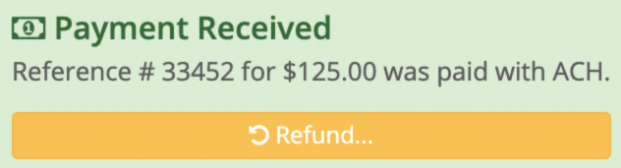
Payments Dashboard
Administrators can review payment activity from the Payments Dashboard. Navigate to: Dashboards → Payments From the Payments tab, you can:- Choose a specific date range
- Filter payments by Paid, Unpaid, Canceled, or Failed
- Search using a payment’s reference number
- Open the corresponding Captivated conversation using the conversation icon
- Initiate a refund using the three-dot menu
- Download payment information to CSV
Transactions
Select the Transactions tab within the Payments Dashboard to review transactions by type. You can filter and download transaction information or select the conversation icon next to a transaction to open the corresponding conversation. If a transaction you’re looking for isn’t displaying, select Resync to load the latest transaction information.When Will the Money Reach My Bank Account?
Express Pay payouts are deposited directly into the bank account connected to the payment account. The Express Pay FAQ lists typical processing as approximately two business days. I’d probably phrase this as “typically” rather than promising a two-business-day payout every time.Who Can Send Payment Requests?
Access to Express Pay is permission-based. Payment permissions can be provided to specific users, teams, or the entire organization. If you don’t see the option to request a payment, contact your Captivated Administrator or Captivated Support to confirm your permissions and access to Express Pay.Frequently Asked Questions
Does Express Pay use our existing credit card processor?
Does Express Pay use our existing credit card processor?
No. Express Pay works directly through Captivated and includes credit card and ACH processing. It is designed for remote/text-to-pay transactions and does not replace an existing card-present solution such as a physical card reader.

How do I know when a customer has paid?
How do I know when a customer has paid?
The payment status updates directly within the Captivated conversation once the payment has been received.
Can customers choose which bank account to use?
Can customers choose which bank account to use?
Yes. When paying by bank account, Plaid guides the customer through authentication and allows them to select the bank account they would like to use for the payment.
Can customers use Apple Pay or Google Pay?
Can customers use Apple Pay or Google Pay?
Yes. Express Pay supports Apple Pay and Google Pay from compatible smartphones.