

Call Forwarding Video Walkthrough
Call Forwarding
If Captivated has provided your business with a designated texting line, an Administrator should configure call forwarding so that customers who call the texting number are directed to the appropriate phone number. When someone calls the Captivated text line, the call will automatically forward to the number entered in the Forward Inbound Calls To field.Calls can only be forwarded to one U.S. phone number at a time. An Administrator can update the forwarding number whenever needed.
Set Up Call Forwarding
- Navigate to Administration → Channels.
- Locate the channel you want to configure.
- Select Edit Channel.
- Enter the appropriate phone number in Forward Inbound Calls To.
- Select Save.
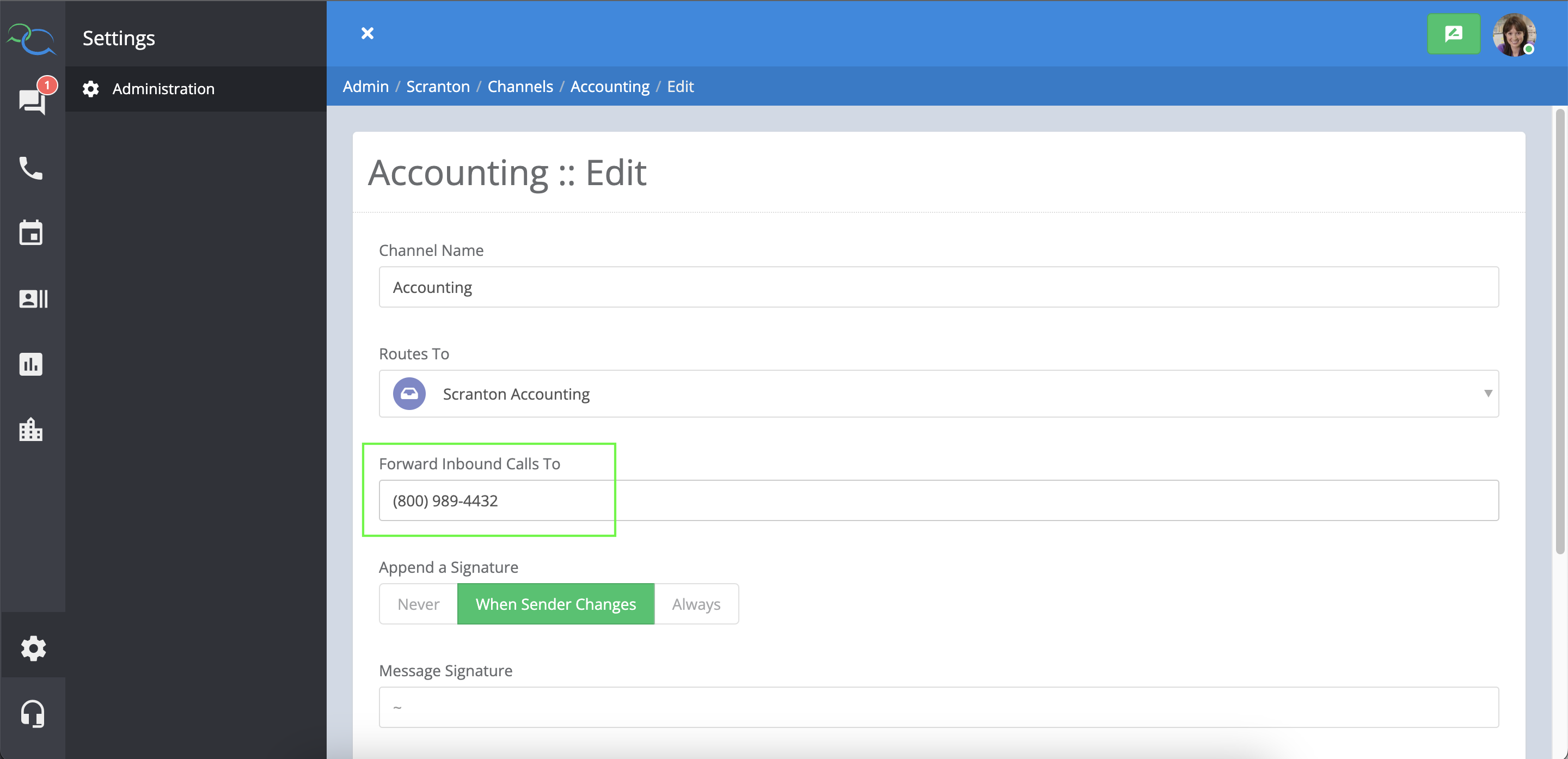 Once saved, the channel details will display the number where inbound calls are being forwarded.
If your organization changes the phone number receiving inbound calls, remember to update the forwarding number in the channel settings.
Outbound Calling
Captivated’s outbound calling feature allows you to call a contact directly from a Captivated conversation. This can be used whether Captivated has text-enabled an existing business landline or your business uses a dedicated Captivated texting line. When you initiate an outbound call:- Captivated first calls the personal mobile number listed in your profile.
- Answer the incoming call.
- Captivated then connects the call to your customer.
- The business number displays as the caller ID to the customer rather than your personal mobile number.
Make an Outbound Call
From the conversation with the contact:- Select the more menu below the message field.
- Choose Call Contact.
- Captivated will call the mobile number associated with your profile.
- Answer the call.
- Captivated will then connect you to the contact.
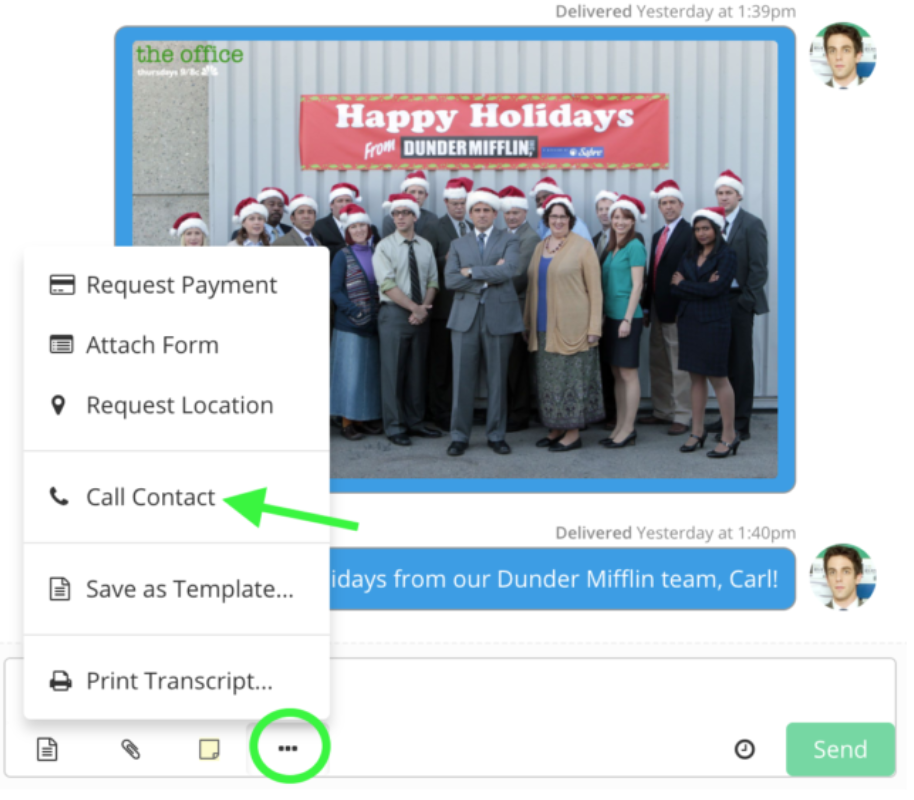
Make sure your phone isn’t configured to automatically silence or block unknown callers. You must be able to answer the initial call from Captivated for the outbound call to connect.
Add Your Mobile Number
To make outbound calls from Captivated, your personal cell phone number must be entered in the Mobile Phone Number field of your profile. Navigate to your avatar → My Profile and enter your personal cell phone number in the appropriate field.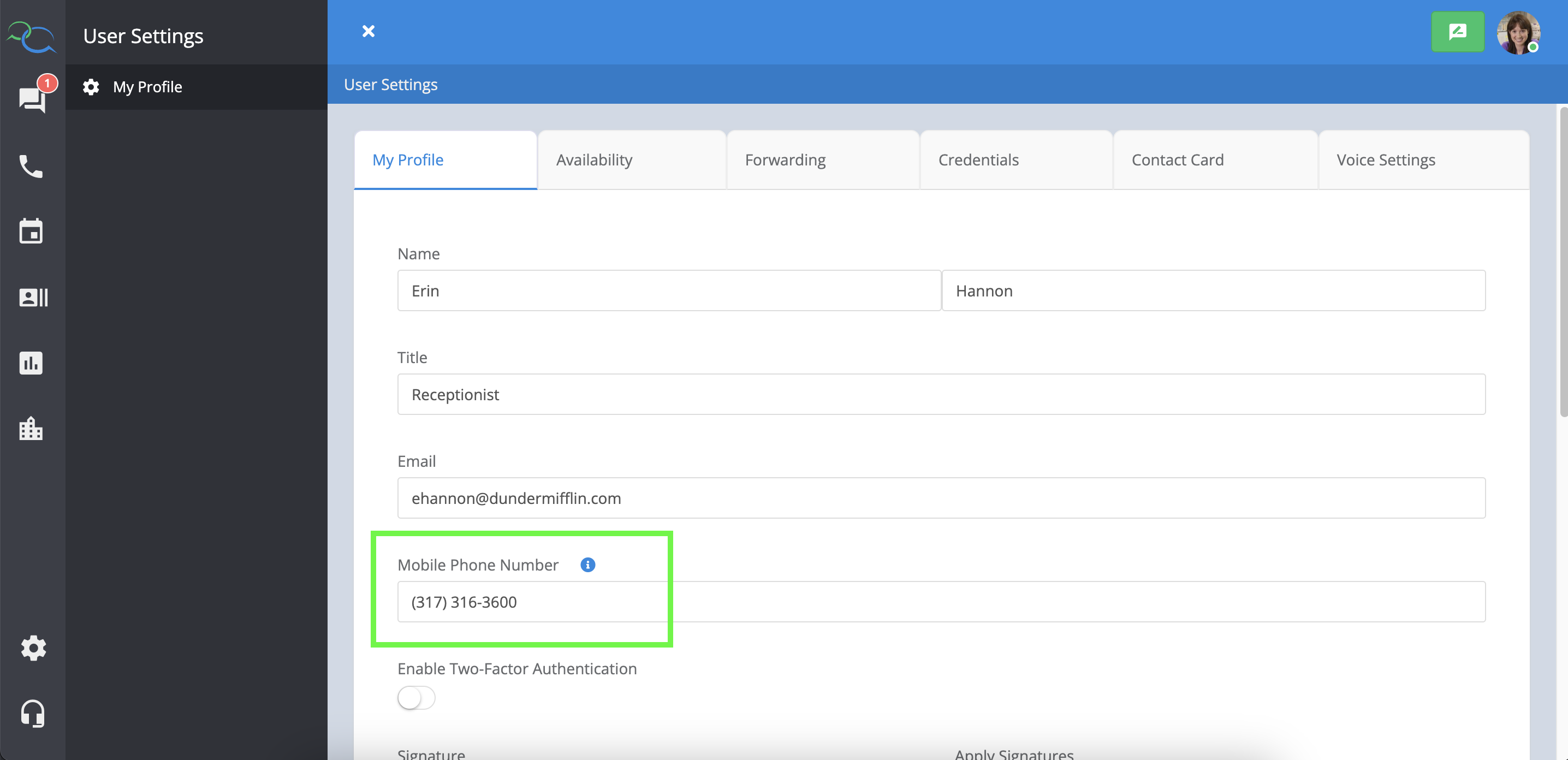
Your personal mobile number is used to connect the outbound call. The customer sees the business number as the caller ID, not your personal mobile number.